Configuring Teltonika 4G/LTE Routers involves several key steps to ensure optimal performance and… See Telnyx guidance and requirements.
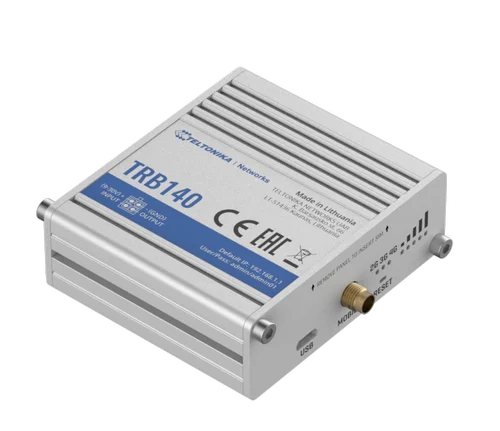
Teltonika LTE routers are widely used in IoT, industrial, and remote networking applications. Setting up a Telnyx SIM on a Teltonika router ensures a secure and reliable cellular connection. This guide provides step-by-step instructions to configure a Teltonika LTE router with a Telnyx SIM—and adds robust failover recovery with auto-reboot, plus RMS cloud integration for managing large SIM fleets.
1. Initial Setup
Insert the SIM Card:
- Power off the router.
- Insert your active Telnyx SIM into the designated SIM slot.
- Ensure the SIM is securely seated to prevent connectivity issues.
Connect to Power and Computer:
- Power on the router using the included adapter.
- Use an Ethernet cable to connect the router’s LAN port to your computer.
2. Accessing the Web Interface
Default IP Address:
- Open a browser and enter:
http://192.168.2.1
Login Credentials:
- Username:
admin - Password: (printed on the router label)
⚠️ On first login, you may be prompted to change the password.
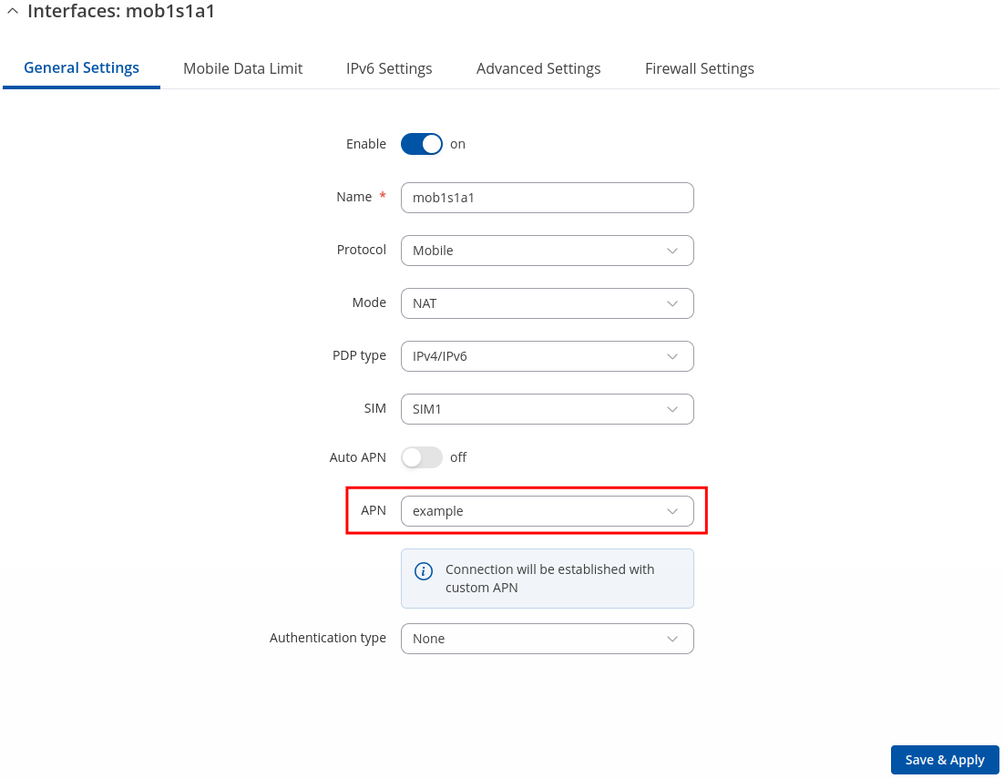
3. Configuring APN Settings for Telnyx
Navigate to: Network > Interfaces
Edit Mobile Interface:
-
Click the pencil icon next to
mob1s1a1(mobile interface). -
Uncheck Auto APN.
-
Enter the following:
- APN:
data00.telnyx - Username/Password: leave blank unless instructed.
- APN:
Save Changes:
- Click Save & Apply.
4. Verifying Connectivity
Check Status:
-
Go to
Status > Network Information. -
Confirm:
- Connected status
- Assigned IP address
- Signal strength is within usable range
5. Configuring Auto-Reboot for Network Recovery (Recommended)
To ensure the modem recovers from service interruptions or poor network connectivity, configure the auto-reboot watchdog feature:
Navigate to: System > Auto Reboot
Enable Watchdog Monitoring:
-
Enable Auto Reboot.
-
Set Reboot Conditions:
- Select Ping Reboot
- Enter reliable targets like
8.8.8.8and1.1.1.1
-
Set Ping Interval and Retry Count:
- E.g., ping every 60 seconds, reboot after 3 failures
-
Optional: Enable Scheduled Reboot (e.g., daily at 3 AM)
Apply Settings:
- Click Save & Apply
🔁 This helps the modem recover automatically from outages without manual intervention—especially critical for remote or unattended deployments.
6. Optional: Teltonika RMS for Centralized Fleet Management
If you’re deploying many Teltonika routers with Telnyx SIMs, using Teltonika RMS (Remote Management System) is highly recommended.
What is RMS?
A cloud-based management platform by Teltonika that enables:
- Real-time monitoring of devices and SIMs
- Remote firmware/configuration updates
- Command-line access for remote diagnostics
- Batch operations (e.g., set auto-reboot across 100+ routers)
- VPN tunnel setup and firewall configurations
- Alerts and logs for connection drops or reboot events
Benefits for Telnyx SIM Users:
- Central dashboard to track usage, signal, uptime
- Minimize truck rolls with remote troubleshooting
- Set up auto-reboot and APN settings for all routers
- Monitor health of every modem in the field with automated alerts
How to Start:
- Sign up at rms.teltonika-networks.com
- Register each device using the unique RMS code found in the web UI (
System > RMS) - Apply configuration templates or execute remote CLI scripts
💡 Telnyx customers managing LTE modems at scale will benefit immensely from RMS observability, bulk configuration, and failover automation.
7. Firmware & Security
- Update Firmware:
System > Firmware– check for latest updates - Firewall: Customize via
Network > Firewall - VPN Support: Available under
VPN(OpenVPN, WireGuard, IPsec)
8. Backing Up Configuration
- Go to
System > Backup - Click Generate and download the backup for disaster recovery
9. Troubleshooting Tips
No Internet:
- Ensure SIM is active and APN is correct
- Confirm signal reception is sufficient
- Verify auto-reboot is configured in case of prolonged disconnection
Weak Signal:
- Move router to a better location
- Use external antennas to improve signal gain