Learn how to set up and configure a Grandstream GXP1630/GXP2135 IP Phone and connect it to your Telnyx account. See Telnyx guidance and requirements.
| Grandstream GXP1630 | Grandstream GXP2135 |
| Our most powerful entry-level Basic IP phone, the GXP1630 delivers an effective communications platform for access to quick call control. Delivering a vibrant and clear user-interface, this device is a perfect solution for those who handle low to medium call volume and require access to key call efficiency functionalities. | The Grandstream GXP2135 is the ideal selection for busy users who value call control, productivity and usability, and manage medium to heavy call volumes. Equipped with 8 lines and 4 SIP accounts, a 2.8 inch color LCD display, and 32 digital speed dial/BLF keys, the GXP2135 enables quick and powerful usability. As all Grandstream IP phones do, the GXP2135 features state-of-the-art security encryption technology (SRTP and TLS). The GXP2135 supports a variety of automated provisioning options, including zero-configuration with Grandstream’s UCM series IP PBXs, encrypted XML files and TR-069, to make mass deployment extremely easy. |
| It boasts such features as: * 3 SIP accounts, 3 line keys, 4-way conferencing, 3 XML programmable context-sensitive soft keys * HD audio on speakerphone and handset * Dual-switched Gigabit ports, integrated PoE * 8 dual-colored BLF/speed dial keys * EHS support for Plantronics headsets * Up to 1000 contacts, call history up to 200 records Additional documentation: * GXP1630 user guide * GXP1630 Admin manual | It boasts such features as: * 8 lines, 4 SIP accounts, 4 XML programmable context-sensitive soft keys * Dual switched, auto-sensing Gigabit ports, built-in PoE * 32 digitally programmable and customizable BLF/speed-dial keys * Built-in Bluetooth for syncing headsets and mobile devices for contact books, calendars & call transferring * HD audio on the handset and speakerphone; full duplex speakerphone * Supports EHS compatible Plantronics headsets * 4-way audio conferencing for easy conference calls Additional documentation: * GXP2135 product documentation * GXP2135 user manual * GXP2135 admin manual |
Instructions for configuring the Grandstream GXP IP Phone to work with Telnyx
| Note: The configuration steps for both the Grandstream GXP1630 and the GXP2135 are identical. This guide will satisfy the setup and configuration of either. |
In this activity you will:
Pre-requisites
- Ensure that your Telnyx Mission Command Portal is configured properly
- RECOMMENDED: Enable TLS to encrypt your traffic
Video Walkthrough
Setting up your Telnyx SIP portal account so you can make and receive calls:
| Note: Video walkthrough for Grandstream GXP/Telnyx configuration coming soon. Check back as we update our docs. |
1. Get your device's IP address and log into your phone's web portal
In this step, you'll obtain the IP address from your GXP, which you'll need to log into the web portal in the next step.
-
From your phone, navigate to Menu >> Status >> Network Status >> IPv4 Address and take note of the IP address on this screen. You'll need it next.
-
On a computer connected to the same network as your phone, open a web browser and type http:// followed by the phone's IP address into the address bar of your browser.
-
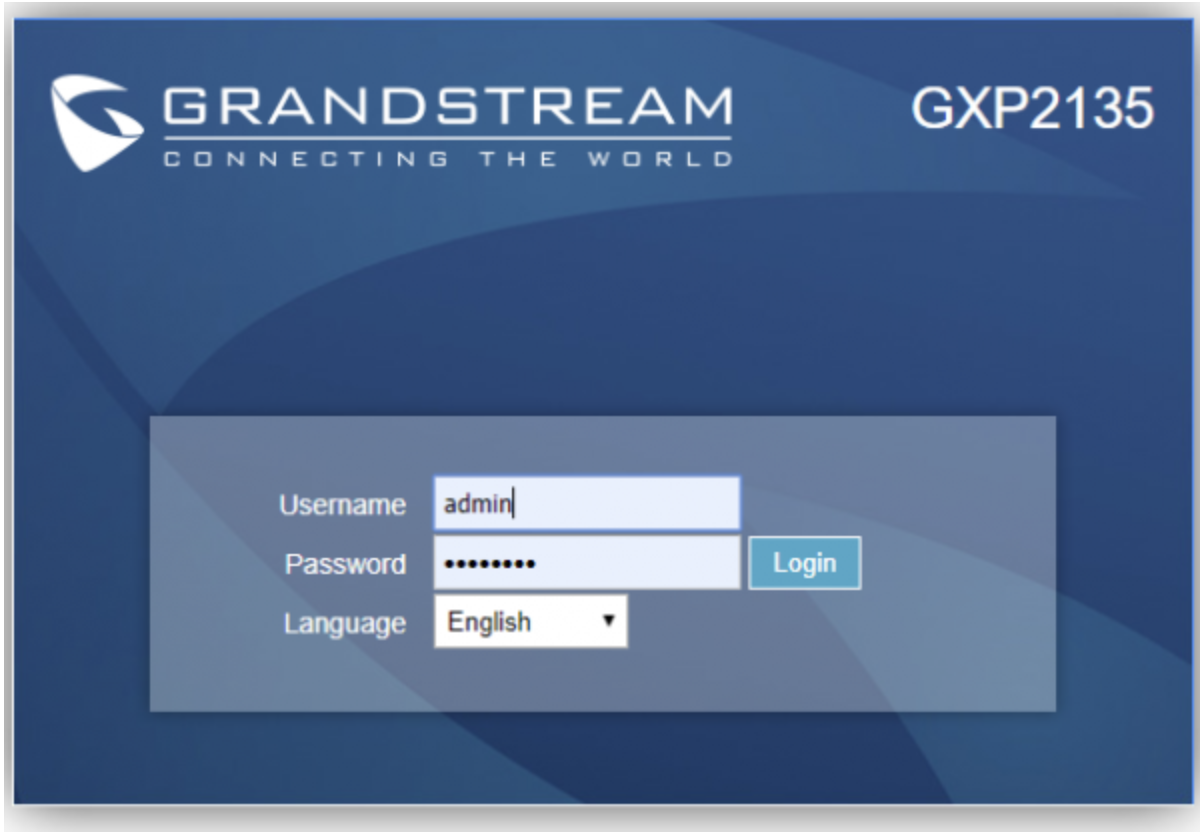
Log into the portal. Out of the box, the default credentials are:
- Username: admin
- Password: admin
2. Configure your Grandstream GXP
In this step, you'll create a SIP trunk and connect your phone to Telnyx.
-
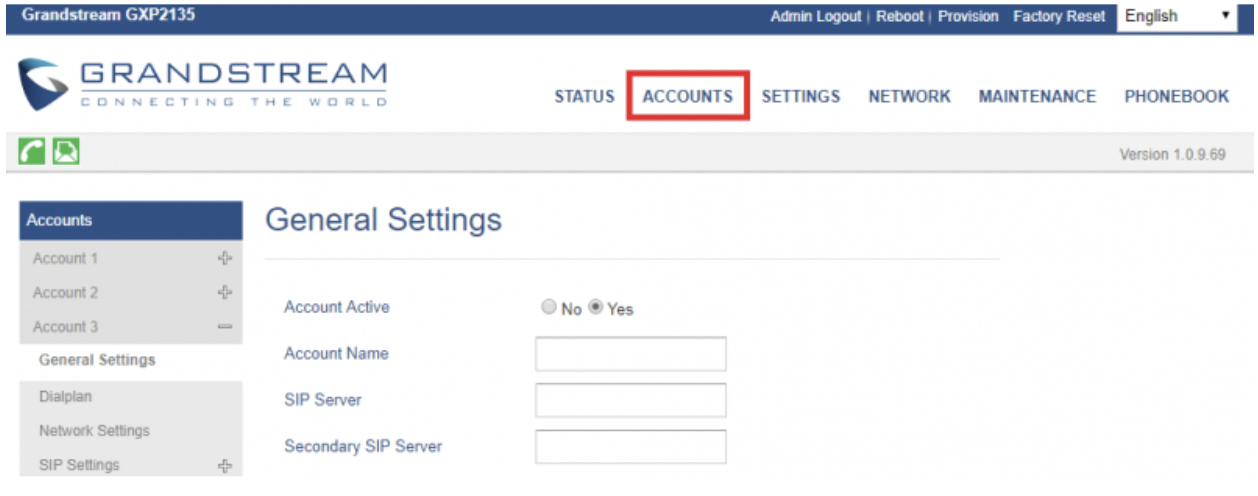
Click on Accounts in the top menu.
-
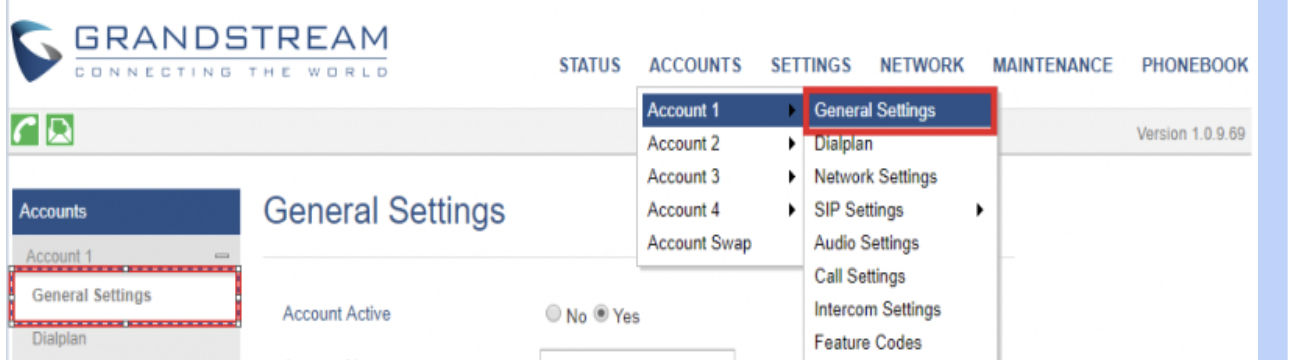
Expand the account you're looking to configure and click General Settings.
You can also use the top navigation to get here if you want.
-
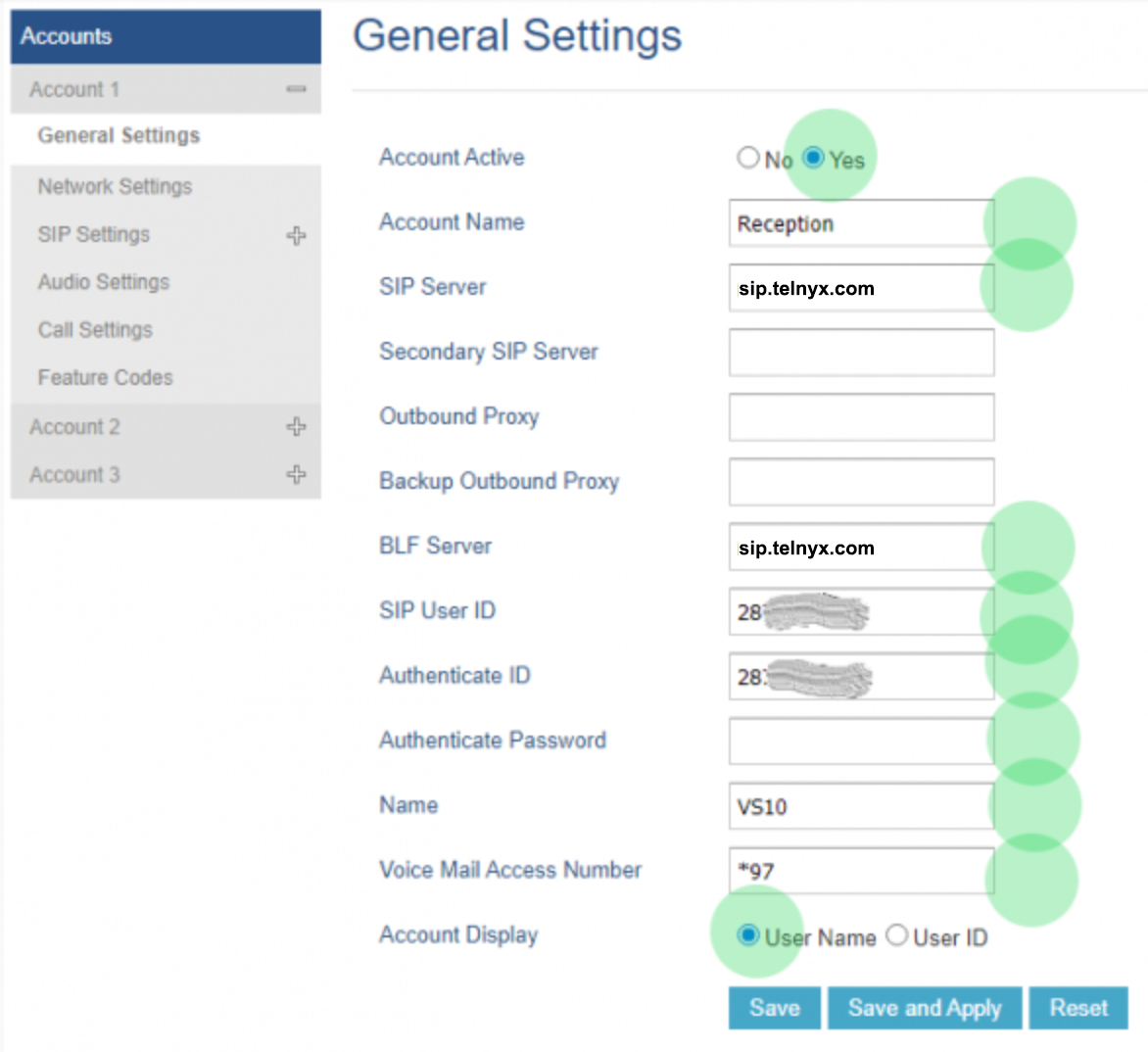
On this page, enter the following information:
-
Account Name: Give it a name that makes sense for you
SIP Server: sip.telnyx.com
SIP User ID: Your Telnyx SIP account username
Authenticate Password: Your Telnyx SIP account password
Name: This is your caller ID. You can choose whatever you like, but keep in mind the following naming conventions:
- Caller ID Name should be in capital letters. This will appears more clearly/visible on some devices.
- You must NOT use any special characters, as they will not be displayed. Spaces are allowed.
- Some of regular Canadian providers will not show more than 15 characters. We suggest shrinking or adapt your caller ID.
-
Voice Mail Access Number: *97
-
-
Now, while still in Accounts > Account 1 (or the account you want to configure) click on SIP Settings > Basic Settings and provide the following information:
- SIP Registration: Yes
- Register Expiration: 5 (this is in minutes)
- Enable OPTIONS Keep Alive: Yes
- Local SIP Port: 5060 if you have not enabled TLS encryption. If you have, choose 5061.
- SIP Transport: UDP or TCP if you have not enabled TLS encryption. If you have, choose TLS/TCP.
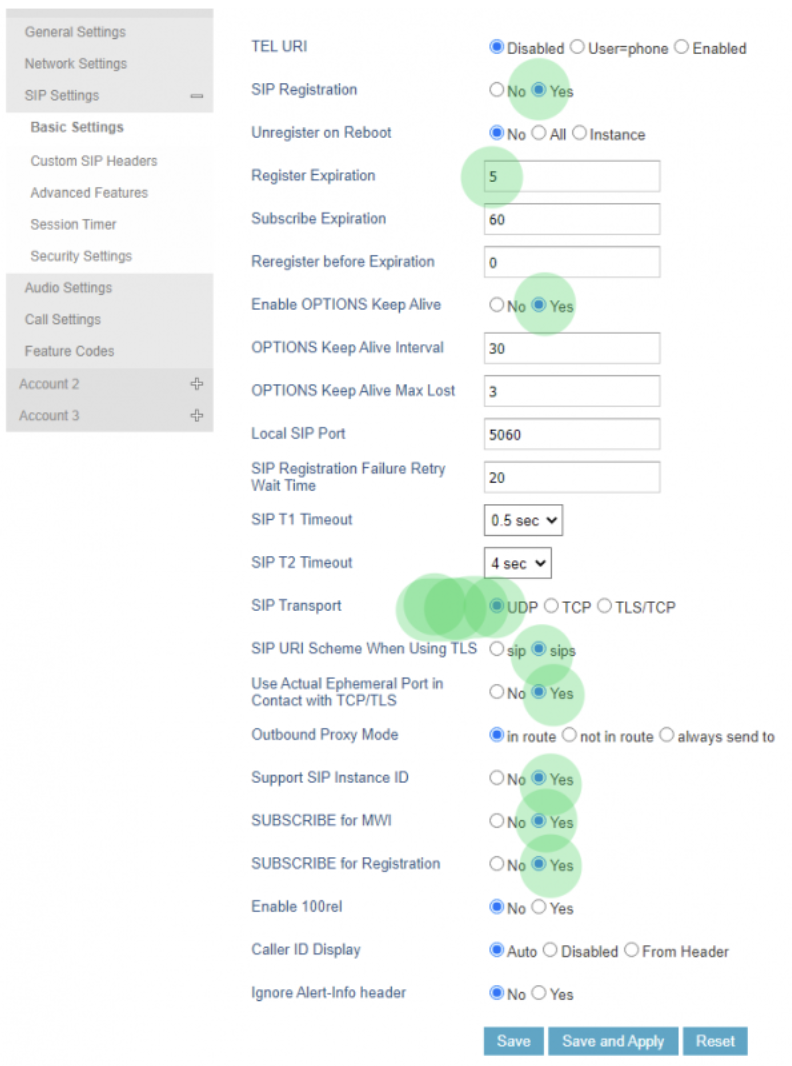
*This screenshot demonstrates a connection that uses UDP transport.
-
Click Save and Apply.
That's it! You've finished configuring your Grandstream GXP profile, and can now start testing calls!
Troubleshooting
"I can receive incoming calls, but outgoing call are failing. The error says 'No response'"
Answer
-
Log into the web portal and navigate to Accounts > Account X > SIP > Custom SIP Header and disable:
- Use X-Grandstream-PBX Header
- Use P-Access-Network-Info Header
- Use P-Emergency-Info Header
-
Go to Accounts > Account X > SIP > Audio Settings, and choose codec G729A/B as preferred Vocoder.
Additional Resources
Review our getting started with guide to make sure your Telnyx Mission Control Portal account is setup correctly!
Additionally, check out:
- GXP1630 user guide
- GXP1630 Admin manual
- GXP2135 product documentation
- GXP2135 user manual
- GXP2135 admin manual